
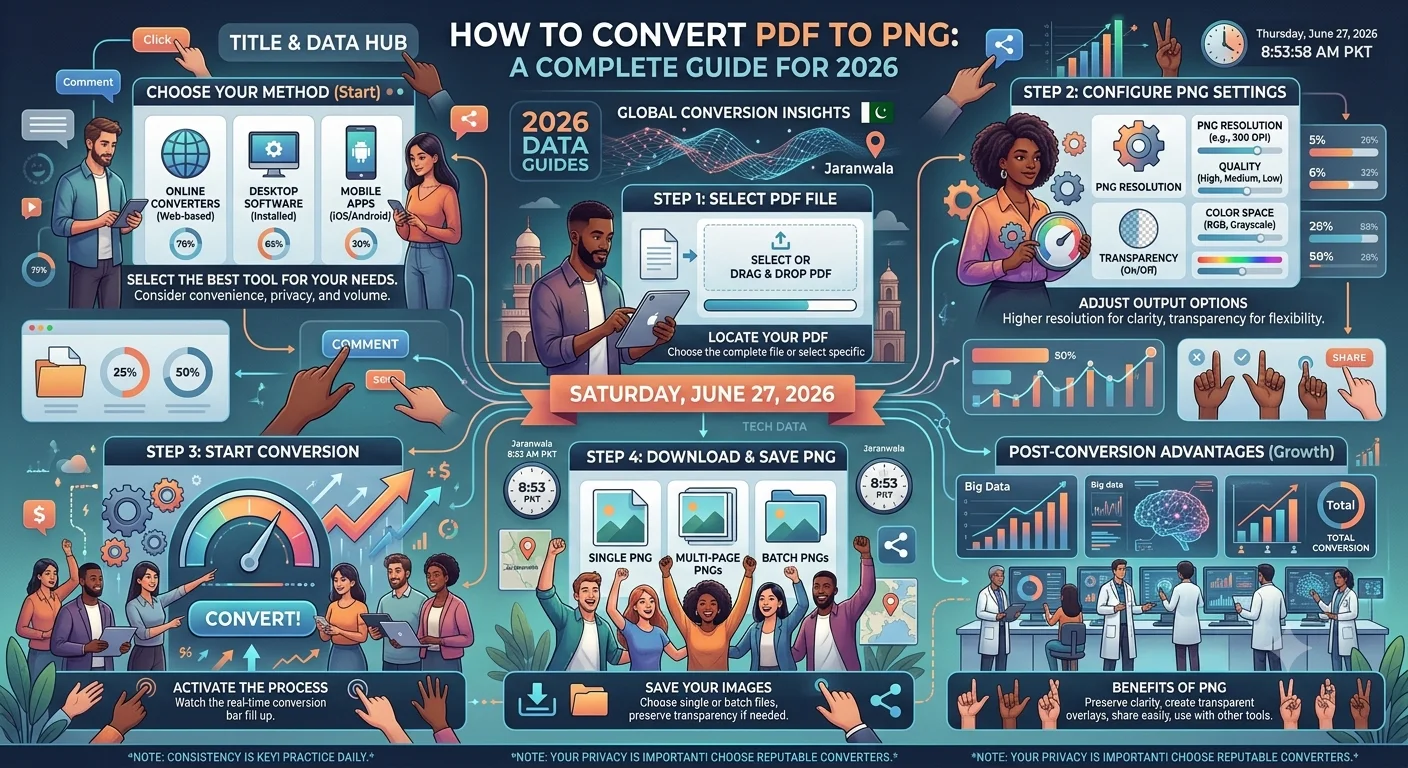
PDF files are great for sharing documents, but they're not always the right format for every job. If you need to drop a single page into a presentation, post it on social media, embed it in a website, or edit it in an image editor, you'll want a PNG instead. Tools like Multi Converters make this kind of file conversion quick and hassle-free. This guide walks through why you'd convert PDF to PNG, the methods available, and how to pick the best one for your situation.
Why Convert a PDF to PNG?
PDFs are built for printing and document exchange, preserving layout, fonts, and structure across devices. PNGs, on the other hand, are raster images: every pixel is fixed, which makes them easier to use in places that don't support PDFs natively.
Common reasons people convert PDF to PNG include:
-
Web publishing: Most content management systems and social platforms don't render PDFs inline, but they display PNGs perfectly.
-
Presentations: Dropping a PNG of a PDF page into PowerPoint or Google Slides is far simpler than trying to embed or link a PDF.
-
Image editing: Tools like Photoshop, GIMP, or Canva work with raster images, not PDFs, so converting first is necessary if you want to annotate, crop, or retouch a page.
-
Thumbnails and previews: E-commerce sites, document management systems, and portfolios often need a quick visual preview of a PDF page.
-
Transparency support: PNG supports transparent backgrounds, which is useful for logos, diagrams, or scanned signatures that need to sit cleanly on other backgrounds.
PNG vs. JPG vs. PDF: Which Format Should You Use?
|
Format |
Best For |
Quality |
Transparency |
|
|
Printing, multi-page documents, archiving |
Vector-based, scalable |
N/A |
|
PNG |
Web graphics, logos, screenshots, diagrams |
Lossless |
Yes |
|
JPG |
Photos, large images where file size matters |
Lossy |
No |
If your PDF contains text, charts, or line art, PNG is almost always the better export choice over JPG, since PNG won't introduce compression artifacts around sharp edges and text.
Methods to Convert PDF to PNG
1. Online Converters
The fastest option for most people is a browser-based tool. You upload your PDF, choose PNG as the output format, and download the converted file with no installation required. A free PDF to PNG converter is ideal for one-off conversions, especially when you're working from a phone or a computer where you can't install software.
Recommended Articles
 GENERAL KNOWLEDGE
 GENERAL KNOWLEDGE
 GENERAL KNOWLEDGE
 GENERAL KNOWLEDGE
2. Desktop Software
Programs like Adobe Acrobat, Preview (on Mac), or GIMP let you open a PDF and export individual pages as PNG files. This route gives you more control over resolution and color settings, which matters if you need print-quality output.
3. Command-Line Tools
Developers and power users often prefer tools like pdftoppm (part of Poppler) or ImageMagick for batch conversions. For example:
pdftoppm -png input.pdf output
This command converts every page of input.pdf into separate PNG files. It's a great option when you need to convert dozens or hundreds of PDFs as part of a workflow or automation script.
4. Programming Libraries
If you're building an application, libraries such as pdf2image (Python), pdf-lib, or PDF.js (JavaScript) allow you to convert PDF pages to PNG programmatically. This is the go-to approach for SaaS products, internal tools, or pipelines that need to process PDFs at scale.
- Instagram Stylish Names: The Ultimate Guide for Boys and Girls in 2026
- Snow Day Predictor: Will School Be Cancelled Tomorrow?
- Word Search: The Timeless Puzzle That Sharpens Your Mind and Feeds Your Curiosity
Tips for Getting the Best Results
-
Set the right resolution (DPI). 150 DPI is fine for screen use; 300 DPI is recommended if you plan to print the image.
-
Convert only the pages you need. Multi-page PDFs can be split first if you only need a specific page as a PNG.
-
Check color profiles. Some converters default to RGB, which is correct for web use but may look different than the CMYK colors in the original PDF if it was designed for print.
-
Watch file size. PNG is lossless, so high-resolution conversions of image-heavy PDFs can produce large files. Compress afterward if file size is a concern.
Final Thoughts
Converting a PDF to PNG is a small task, but picking the right method saves time and avoids quality loss. For quick, occasional conversions, an online tool is usually the most convenient choice. For repeated or bulk conversions, a command-line tool or library will serve you better in the long run. Whichever method you choose, keeping resolution and color settings in mind will ensure your PNG output looks as sharp as the original PDF.